At a glance
Key takeaways
- Your App ID connects the website widget to the right TellTide app.
- Save the widget design before copying and testing the embed snippet.
- Use the private inbox for triage and the public roadmap for selected, customer-ready ideas.
Before setup: subscription and credential boundaries
Product actions require an active Pro subscription. An unpaid account cannot use the dashboard — sign-in shows checkout until they subscribe or sign out. If New app prompts checkout, complete the subscription step before treating that behavior as an installation failure.
Use the supplied widget embed for browser installation. Keep a private server key on a trusted backend; never paste it into a public page, screenshot or client-side bundle. The widget's publishable submission credential has a different purpose from a server credential.
A design preview is not an inbox test. Save the widget, open the registered website and submit there. A successful test should reach the intended app and remain private until you deliberately publish an eligible request. Follow the API documentation for custom integrations.
Step 1: Create your first app
In TellTide, an app represents the product or site receiving feedback. Open Apps, choose New app, and enter a name, platform, short description, and the public app link where the widget will run.
After creation, copy the private server key only if you need trusted backend API access. The widget obtains its submission-only publishable key automatically and validates the configured website origin.
Step 2: Choose feedback types and design the widget
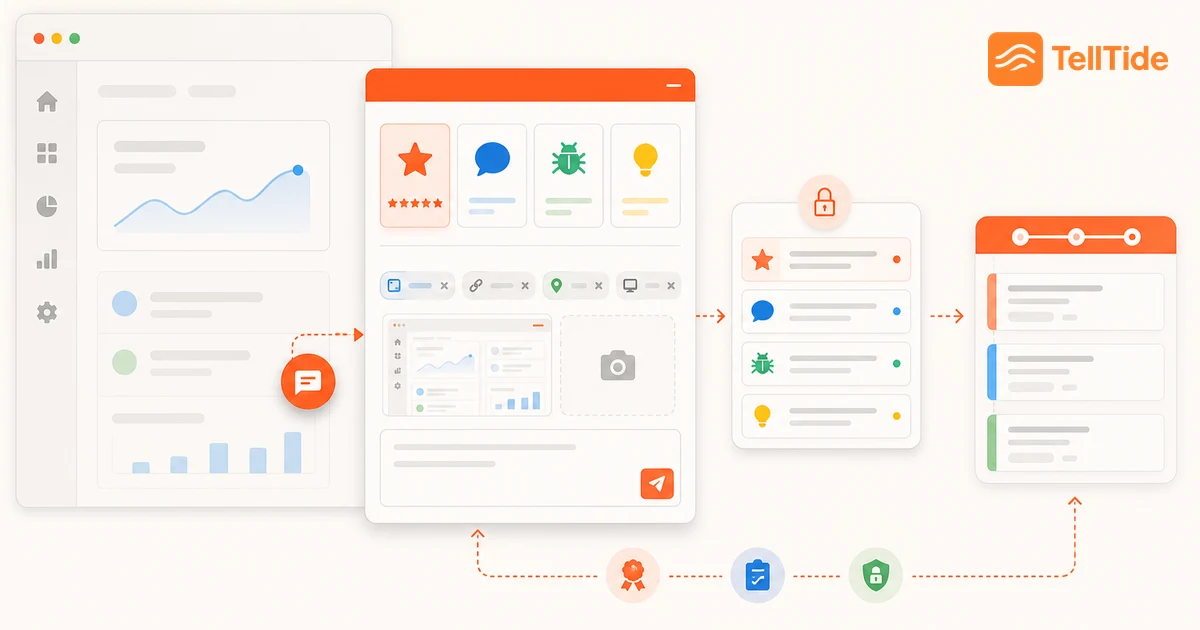
Open Manage Widget for the app. Enable the categories your team is prepared to handle: Review, General feedback, Bug report, and Feature request. You need at least one.
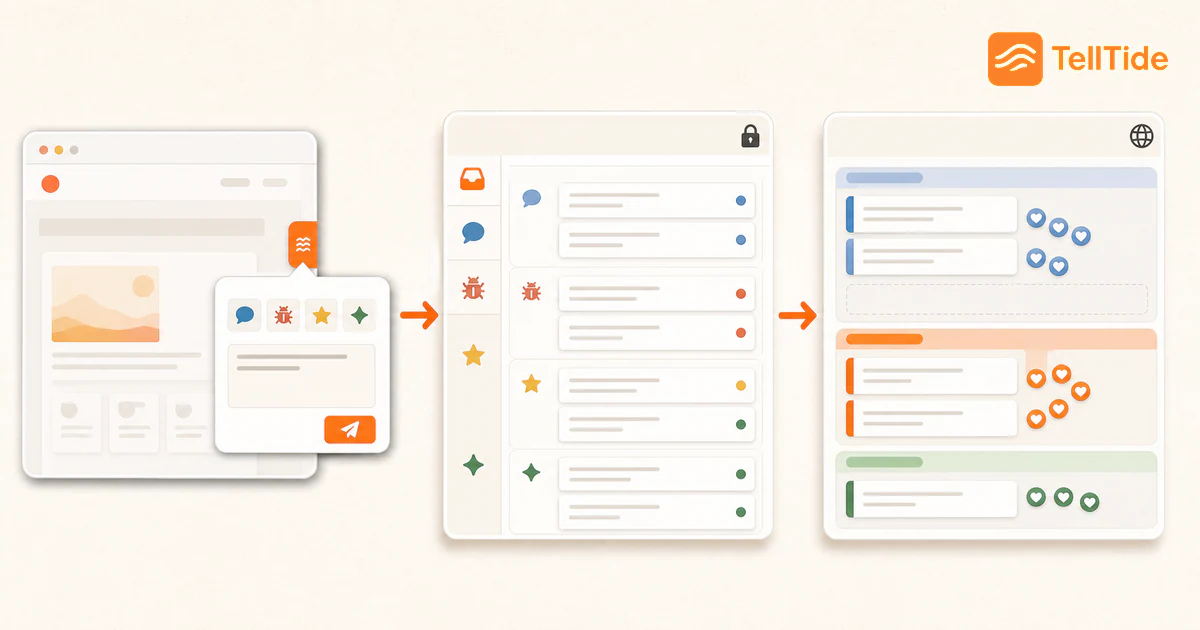
Then match the launcher to your product. Set the colors, label, panel title, position, fonts, behavior, and mobile or desktop visibility. The live preview is for design only and does not create real inbox feedback. Click Save before you copy the embed code.
Step 3: Install the widget and send a test
Copy the snippet from the Embed section and place it on the website that matches the app link. Standard websites can add it before the closing body tag. Next.js and single-page apps can use the dedicated integration guides.
Open the site, click the launcher, and send a clearly labeled test submission. Then open Feedbacks in TellTide. The new row should appear within seconds. This one test confirms the App ID, registered hostname, saved design, and inbox path are working together.
Step 4: Review and manage the feedback inbox
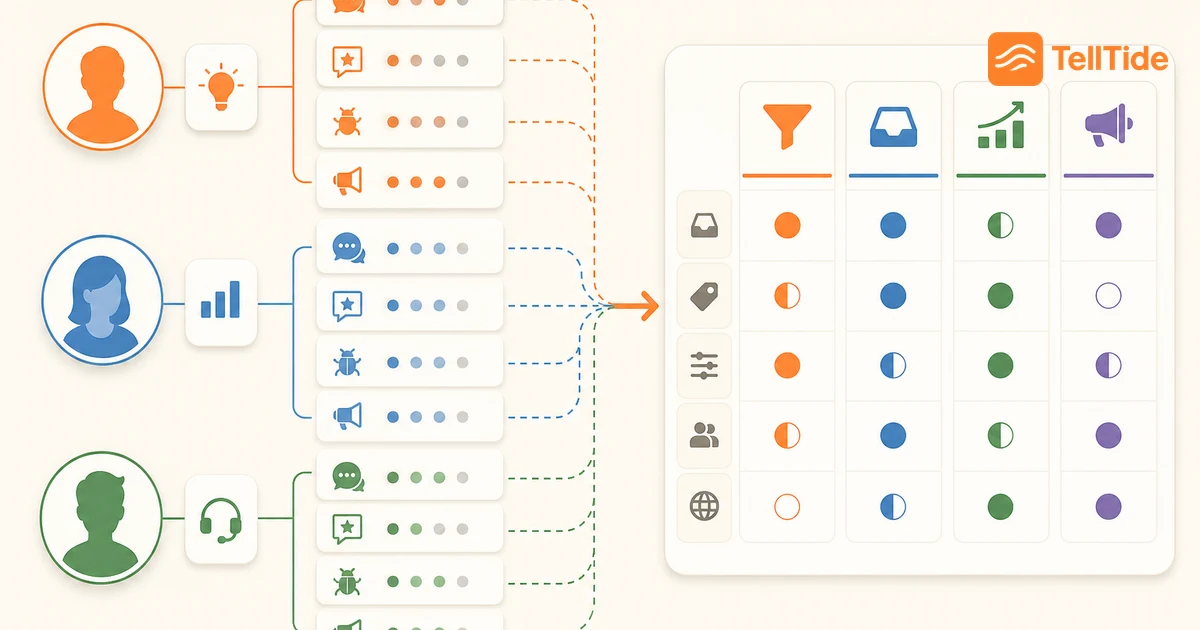
The inbox can show all submissions or filter by app, type, status, and search. Open a row to see the complete message, submitter, rating, page context, and structured bug or feature fields.
Give the item a useful status such as open, in progress, resolved, closed, or declined. A short, consistent status workflow helps the team see what needs attention without creating another backlog system.
Step 5: Publish selected ideas to the public roadmap
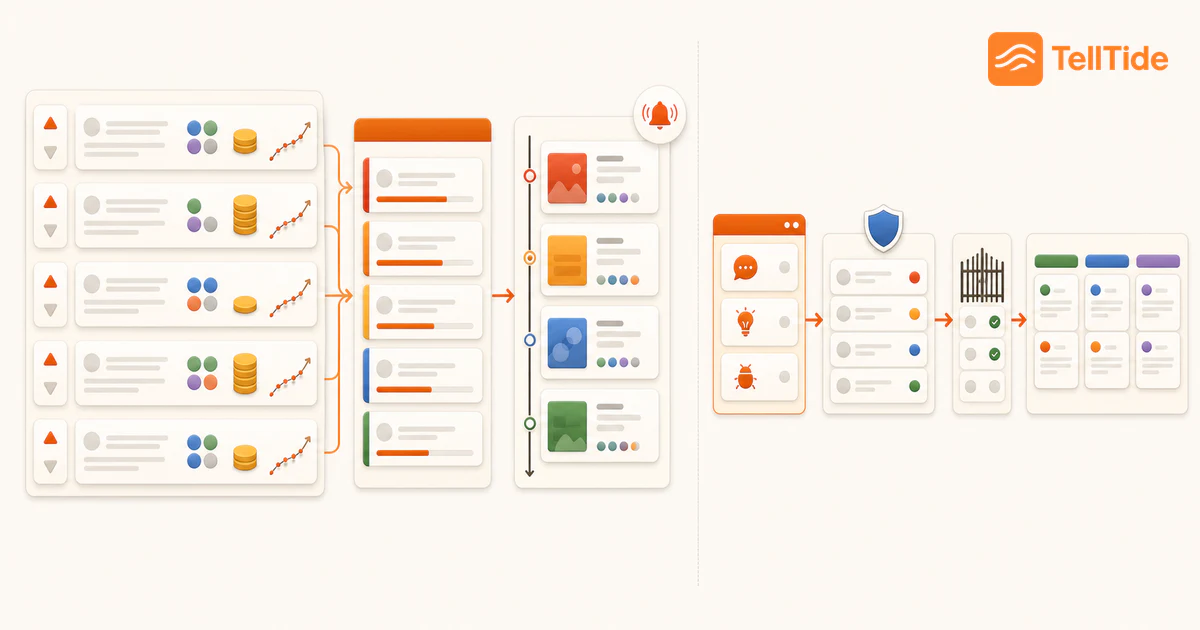
Not every submission belongs in public. Review feature requests privately first, remove sensitive context, and clarify the customer problem. When an item is ready, show it on the roadmap and choose its roadmap stage.
Share the public roadmap URL with customers so they can vote, comment, and follow progress. Keep statuses current. The roadmap is most useful when it reflects real decisions rather than every idea the team has received.
Verify the setup before inviting customers
Run one test for every enabled feedback type on the registered website. Confirm that the launcher is readable on mobile and desktop, each submission reaches the correct app, page context is present, and no private test data appears on the public roadmap. Ask a teammate who did not configure the widget to complete the test; unfamiliar users often reveal unclear labels or missing instructions.
If the launcher does not appear, first confirm that the embed code is present on the rendered page and that the current hostname matches the app link. If a submission does not reach the inbox, verify the App ID, saved widget settings, and browser console before changing several settings at once.
Your first-week operating checklist
- Assign an owner to review new inbox items each working day.
- Agree on the meaning of open, in progress, resolved, closed, and declined.
- Respond to test submissions so the team practices the complete loop.
- Publish only one well-understood feature request to learn the roadmap workflow.
- Add the public roadmap link where customers can find it.
- Review widget completion and message quality before adding more required fields.
Once the loop works end to end, expand gradually. Reliable review and follow-up matter more than enabling every category on the first day.
Put this into practice: Get Pro
Questions teams ask before choosing this workflow
How do I install the TellTide feedback widget?
Create an app, customize and save the widget, then copy the embed snippet from Manage Widget and add it to the site matching your registered app link.
Where does TellTide feedback appear?
Widget and API submissions appear in the Feedbacks inbox, where you can filter by app, type, status, and search and open each item for full details.
How do I add a request to the TellTide roadmap?
Open the suitable feedback item, enable its public roadmap visibility, and choose the appropriate roadmap status. Keep private customer details out of public copy.
Does the widget preview create real feedback?
No. The live preview demonstrates the saved design. Test real submissions from the installed widget on your website or through the API.

Abhijith
Founder of TellTide, writing practical guides about product feedback, feature requests, and public roadmap workflows for SaaS teams.